 eReader Relay
Subscription inboxes
Receive newsletter email privately and include it in scheduled editions.
A subscription inbox gives you a private eReader Relay address for newsletters. Messages are collected first; they are not forwarded to a device the moment they arrive.
Create an inbox
- Open Subscriptions from the sidebar.
- Select Create inbox.
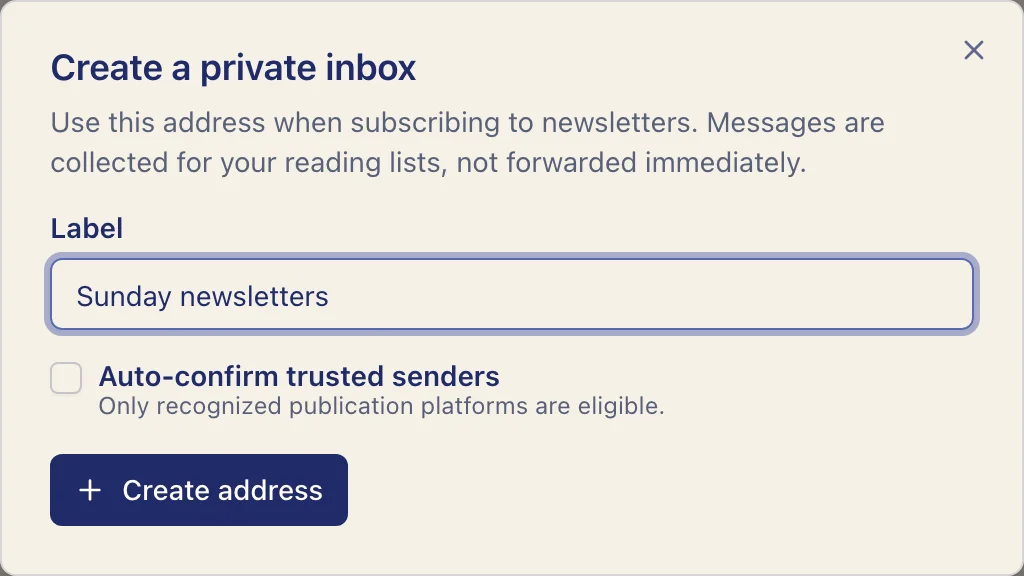
- Give it a label that helps you recognize its purpose.
- Decide whether to enable automatic confirmation.
- Select Create address, then copy the private address after saving.
Automatic confirmation applies only to recognized publication platforms. Keep it off when you want to review confirmation messages yourself or do not trust the sender.
Subscribe to a newsletter
Use the private Relay address in the publisher's newsletter form. Complete any required confirmation. After the first message is received, its sender appears as an observed newsletter and can be selected when creating or editing a reading list.
How newsletter content is used
eReader Relay parses the received email and sanitizes its HTML before using it as an EPUB chapter. Scripts, forms, tracking elements, and unsafe markup do not run. Supported inline images are kept where possible.
The email body is the chapter. Ordinary file attachments are not parsed, converted, or added to the EPUB. This includes PDFs, Word documents, calendar files, archives, audio, video, and images attached as downloads. A supported raster image can be included only when the newsletter HTML explicitly references it as an inline image and it passes the image safety limits.
Inbound email larger than 5 MB is rejected. Attachments count toward that message size even though ordinary attachments are not included in the resulting EPUB.
Keep the address private
Treat a subscription inbox address as a secret routing address. Do not post it publicly. If it starts receiving unwanted email, open its details and choose Revoke address. Revocation immediately stops new mail at that address while preserving previously received newsletters, reading-list memberships, and generated-book history. You can then create a replacement if your plan includes an available private-inbox place.
For missing confirmations or messages, see Newsletter troubleshooting.