 eReader Relay
Devices
Register delivery addresses, send test EPUBs, and remove destinations safely.
A device is a named email delivery destination. It can represent a Kindle, a Kobo workflow, or any other eReader service that accepts EPUB personal documents by email.
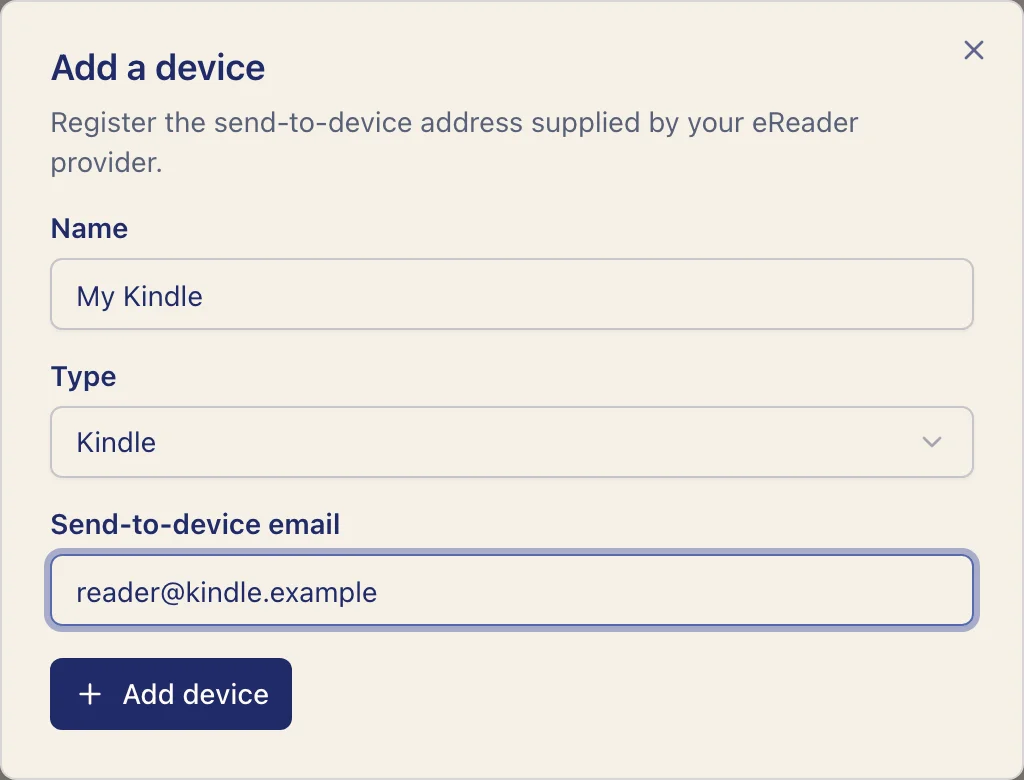
Add a device
- Open Devices from the dashboard.
- Select Add device.
- Enter a name you will recognize.
- Choose Kindle, Kobo, or Other.
- Enter the exact send-to-device email address supplied by that provider.
- Save the device.
For Kindle, complete the approved-sender setup before testing.
Test delivery
From the device detail page, use the test EPUB action. A deployed environment emails the test book to the device address. A local preview may build and store the book without sending external email.
The provider performs the final delivery and may take additional time. Check the device is online and that its address is correct before retrying.
Use devices with reading lists
Select zero or more devices in the Delivery step of a reading list. Every newly generated edition is stored in the EPUB library. With no device selected, it remains library-only. You can also send an existing library book to any registered device later.
Remove a device
Removing a device stops future delivery to it. Existing EPUBs and reading-list history are preserved. Lists with no remaining device continue generating library-only editions.
For delayed or missing books, see Device and delivery troubleshooting.