 eReader Relay
Account and passkeys
Review your profile, add passkeys, revoke credentials you no longer use, and delete your account.
The Account page shows the profile attached to your eReader Relay session, manages passkeys, and lets you delete your account.
Add a passkey
- Open Account.
- Select Add passkey.
- Follow the browser or operating-system prompt.
- Check that eReader Relay passkey appears in the list after registration.
Passkeys use your device's supported authenticator, such as biometrics, a device PIN, or a security key. eReader Relay does not receive the biometric itself.
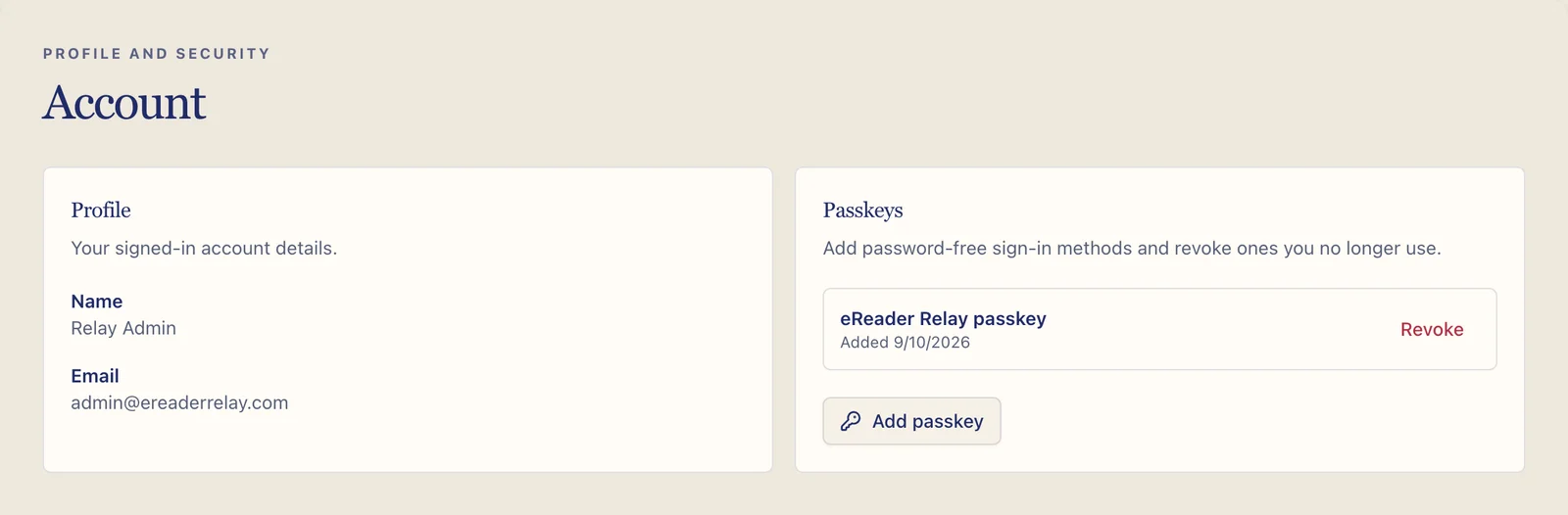
Revoke a passkey
Revoke credentials belonging to lost, shared, or retired devices. Keep at least one working sign-in method available before removing another.
Manage connected AI assistants
Open Account → Connected apps to copy your MCP server URL and review authorized assistants. Select Disconnect to revoke an application's access. See Connect an AI assistant (MCP) for ChatGPT, Codex, Claude, OpenCode, Cursor, and VS Code setup instructions.
Sign out of the extension
Signing out from the browser extension removes its local session from that browser. It does not delete the account, reading lists, devices, or library books.
Delete your account
You can permanently delete your account at any time from the website or the mobile app.
- Open Account and scroll to Delete account, or go directly to ereaderrelay.com/account/delete. In the mobile app, open Settings → Delete account, which opens the same page in your browser.
- Type your account email to confirm, select Delete account, then confirm again.
Deletion is immediate and cannot be undone:
- Any paid subscription is cancelled immediately in Stripe. You are not charged again, and the remaining period is not refunded automatically; email support if you need help with a refund.
- Your reading lists, sources, newsletter inboxes and stored newsletter emails, devices, library books (generated EPUBs), documents, connected AI assistants, passkeys, and usage history are deleted.
- You are signed out on every browser, extension, and device.
For your security, deletion requires a recent sign-in. If you signed in more than a day ago, the page asks you to sign in again first. Stripe keeps its own payment records as required for tax and accounting, under Stripe's privacy policy.
For sign-in problems, see Account and billing troubleshooting or Extension sign-in troubleshooting.