 eReader Relay
Reading lists
Combine inputs, schedule editions, choose devices, and control future runs.
A reading list combines feed and newsletter inputs with a schedule and optional delivery devices. Browser-captured articles can also be added to a specific list from the extension.
Create a reading list
Open Reading lists and select Create reading list. Complete all three steps.
1. Schedule
Enter a title and choose:
- Daily, Weekly, Fortnightly, or Monthly;
- the local delivery time;
- an IANA time zone, such as
Australia/Sydney; - a weekday for weekly and fortnightly lists; or
- a day of the month for monthly lists.
The time zone determines how the schedule behaves through daylight-saving changes. The list detail page displays the calculated Next edition time.
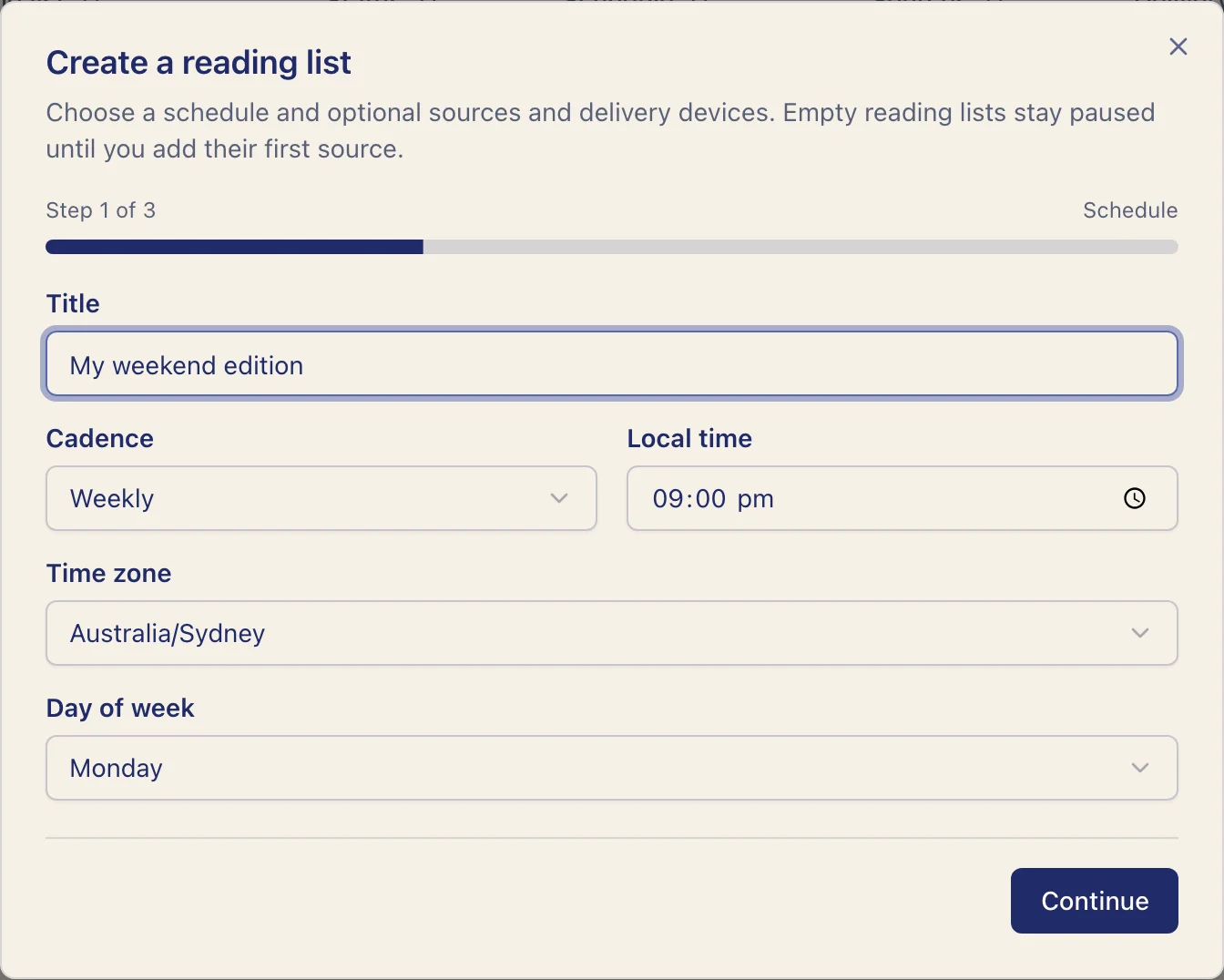
2. Sources
Select public feeds or observed newsletters. A newsletter becomes selectable only after its first message reaches a subscription inbox. You can leave sources empty to create a paused list and add content later.
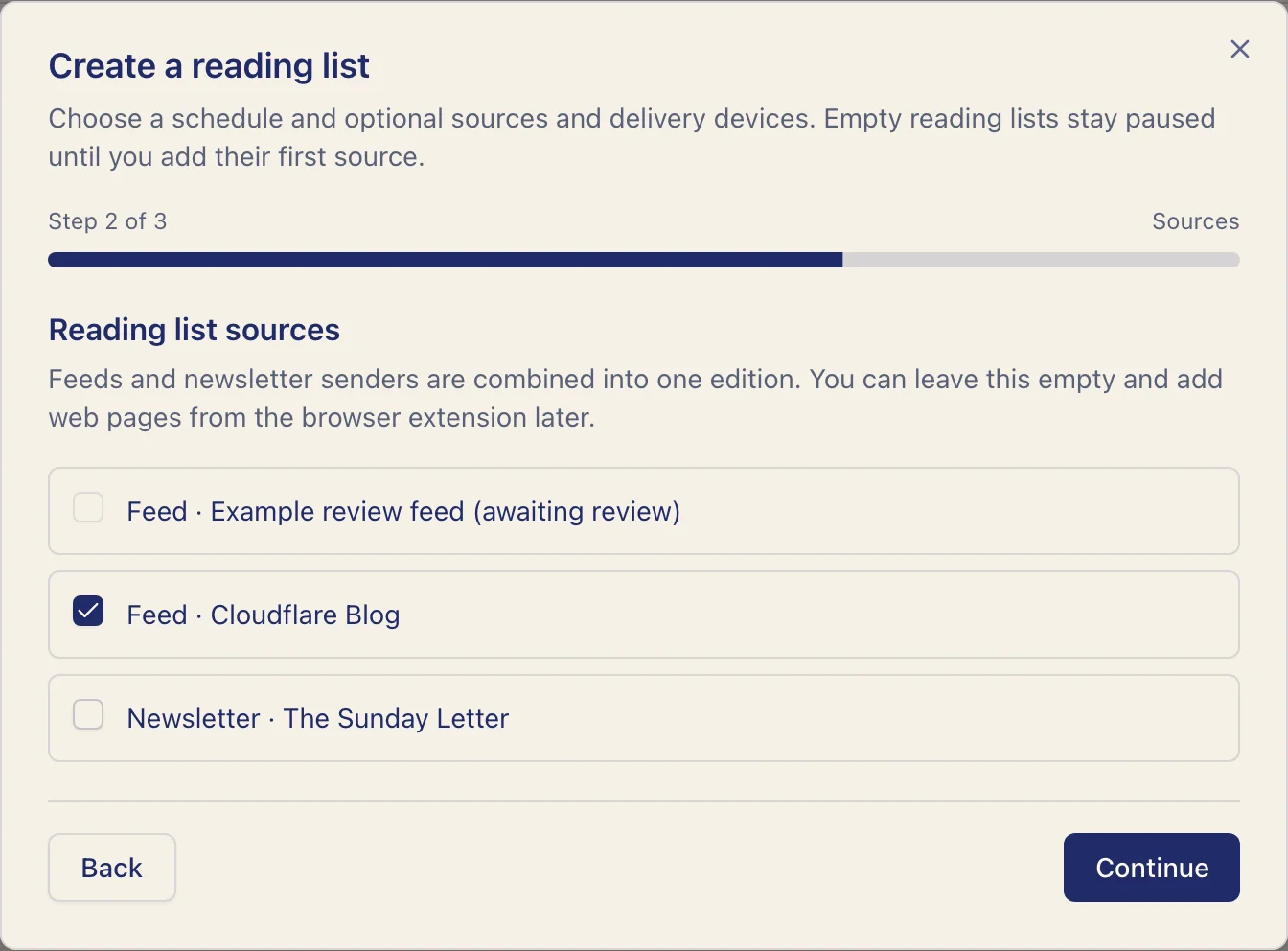
3. Delivery
Select zero or more devices. With no device selected, every generated EPUB is stored in the library without external delivery.
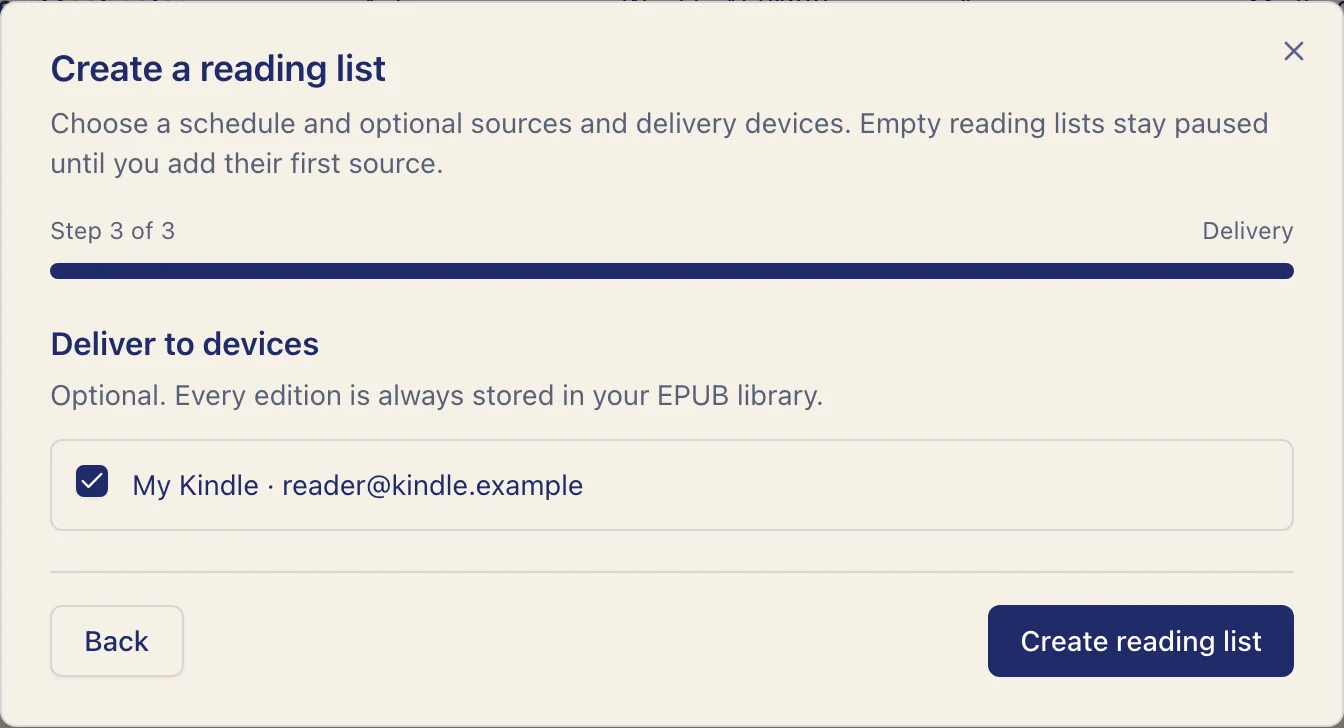
How new entries are selected
Each list keeps its own progress for each source. Its first generated edition includes the latest existing feed entry or observed newsletter message. Later editions include entries newer than that list's saved position. A single feed can therefore serve several lists without one list consuming another's entries.
Run now
Select Run now to queue an edition without changing the recurring schedule. If none of the list's inputs has a readable new entry, no empty book is sent. A list with no sources or saved articles must have content added before it can run.
Follow the run history
Open a reading list to see Run history, including completed, skipped, and failed attempts. Each row shows the time, result, reason, and generated EPUB when one exists.
When a run has no new readable chapters, it is recorded as skipped. Relay attempts to send a transactional email to your account address with a link to adjust the list settings. The history also shows the notification outcome. Local previews record this notification without sending email.
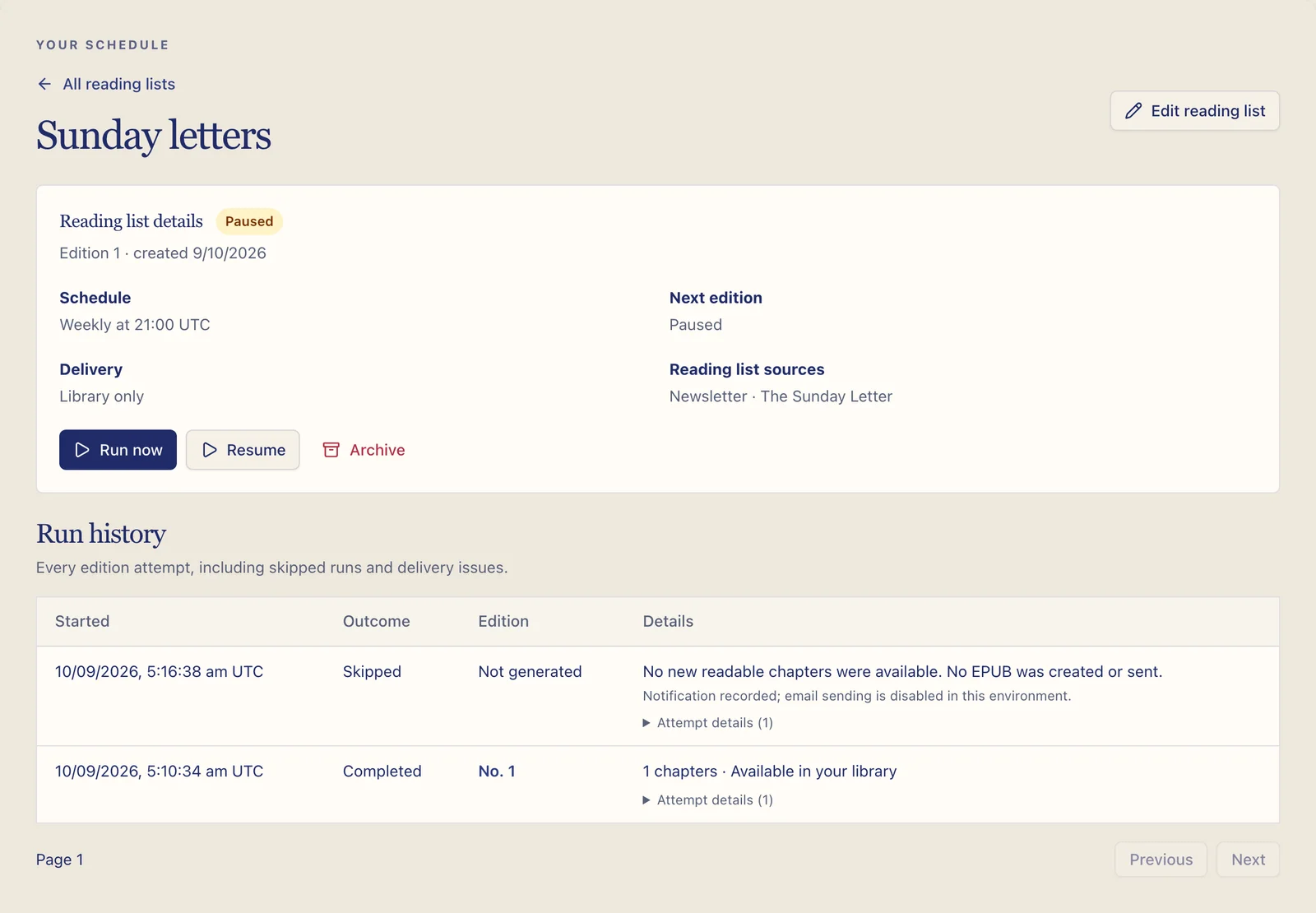
Pause and resume
Pause a list to stop scheduled runs. Its configuration, history, and existing EPUBs remain. Resume it when you want future scheduled editions again.
Edit a list
Open the list and select Edit reading list. Its settings open on a dedicated page with Name and schedule, Reading list sources, and Deliver to devices visible together.
Select or clear feeds, newsletters, or devices directly, then choose Save changes. You can update just one section without stepping through the creation wizard. The page stays open after saving, and the save bar confirms when all changes are saved.
Use Back to reading list to return to its details and run history. Changes are only applied when you save. Editing destinations affects future delivery; it does not resend or alter existing books.
Archive a list
Archiving removes the list from active scheduling while preserving its books and run history. Use archive when the configuration may be useful later.
The table has Current and Archived tabs, search, sorting, and page controls. Select rows or the current page to Archive selected or Restore selected. Switching tabs clears the selection.
Archived details are read-only. Restoring a list leaves it paused, so review its sources, schedule, and devices before resuming it. Plan allowances apply to restoration. If only some selected lists can be restored, the result explains the remaining failures and the table refreshes the successful changes.
For unexpected run times or empty runs, see Schedules and reading-list troubleshooting.